Run Setup Utility

You must have enough available VPCs, Elastic IPs, and NAT Gatewways in the region you are working in to successfully create an EKS Cluster with a managed node group of 2 nodes. You also need to have space for three S3 Buckets. If you run into a problem during the setup, it is usually associated with insufficient resources or permissions in your AWS account. You can resolve resource constraints by requesting a quota increase for your AWS account.
In order to prevent charges to your AWS account, we recommend cleaning up the infrastructure that gets created with the setup utility. If you plan to keep things running so you can examine the workshop a bit more, please remember to do the cleanup when you are done. It is very easy to leave things running in an AWS account, forget about it, and then accrue charges.
Just so you understand ahead of time, you can easily clean up all the resources that get created by the setup utility by using the commands below:
cd /home/ec2-user/environment
./teardownWorkshop.sh
Let’s do this !
Now that you’ve got all the prerequisites out of the way, you can kick off the initial setup steps and go grab a cup of coffee while the setup utility runs.
| Ensure you are in your home directory by executing the command below: |
cd /home/ec2-user/environment| Clone the workshop repository by using the following command: |
git clone https://github.com/APO-SRE/appd_aws_migration_lab.git migration_workshop| After the workshop repository is cloned, use the following command to change to the cloned repository directory: |
cd migration_workshop| Use the following command to make the script executable: |
chmod +x setup_workshop.sh| Use five (5) letters of your first, and or, your last name to create your unique workshop user name using the command below: |
EXAMPLE: export appd_workshop_user=TOMSM
export appd_workshop_user=<YOUR USER NAME>| Use the command below to execute the setup script: |
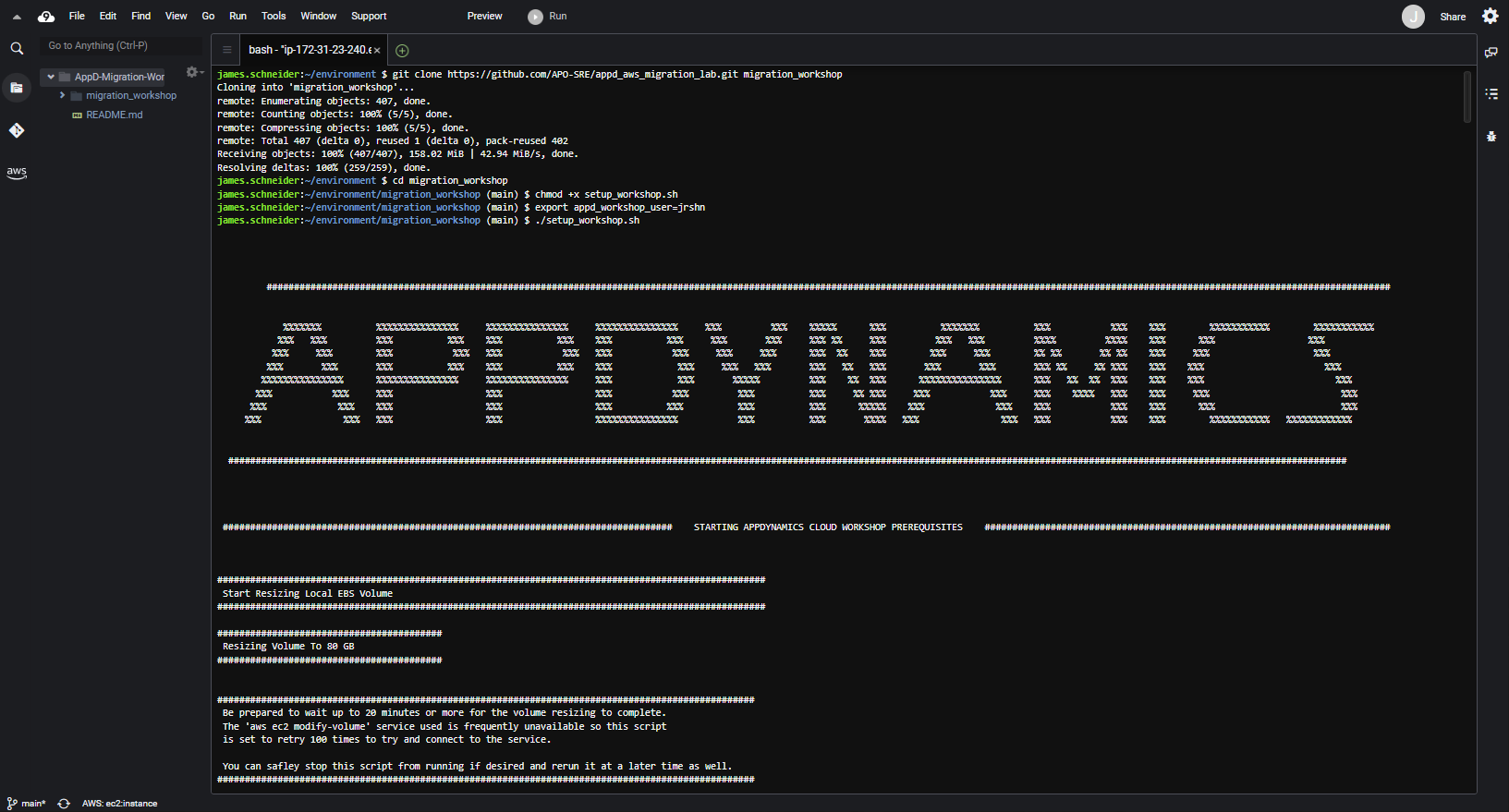
./setup_workshop.shThe setup utility first attempts to increase the size of the EBS volume or disk size. The ‘aws ec2 modify-volume’ service is frequently unavailable so this script is set to retry 100 times to connect to the service. Be prepared to wait up to 20 minutes or more for the volume resizing to complete because of the intermittent reliability of this AWS service. You can safley stop this script from running if desired and rerun it at a later time as well. After the volume is resized, the remaining tasks of setup utility take approximately 22 minutes to complete.
| The output from the start of the setup script should look like this: |
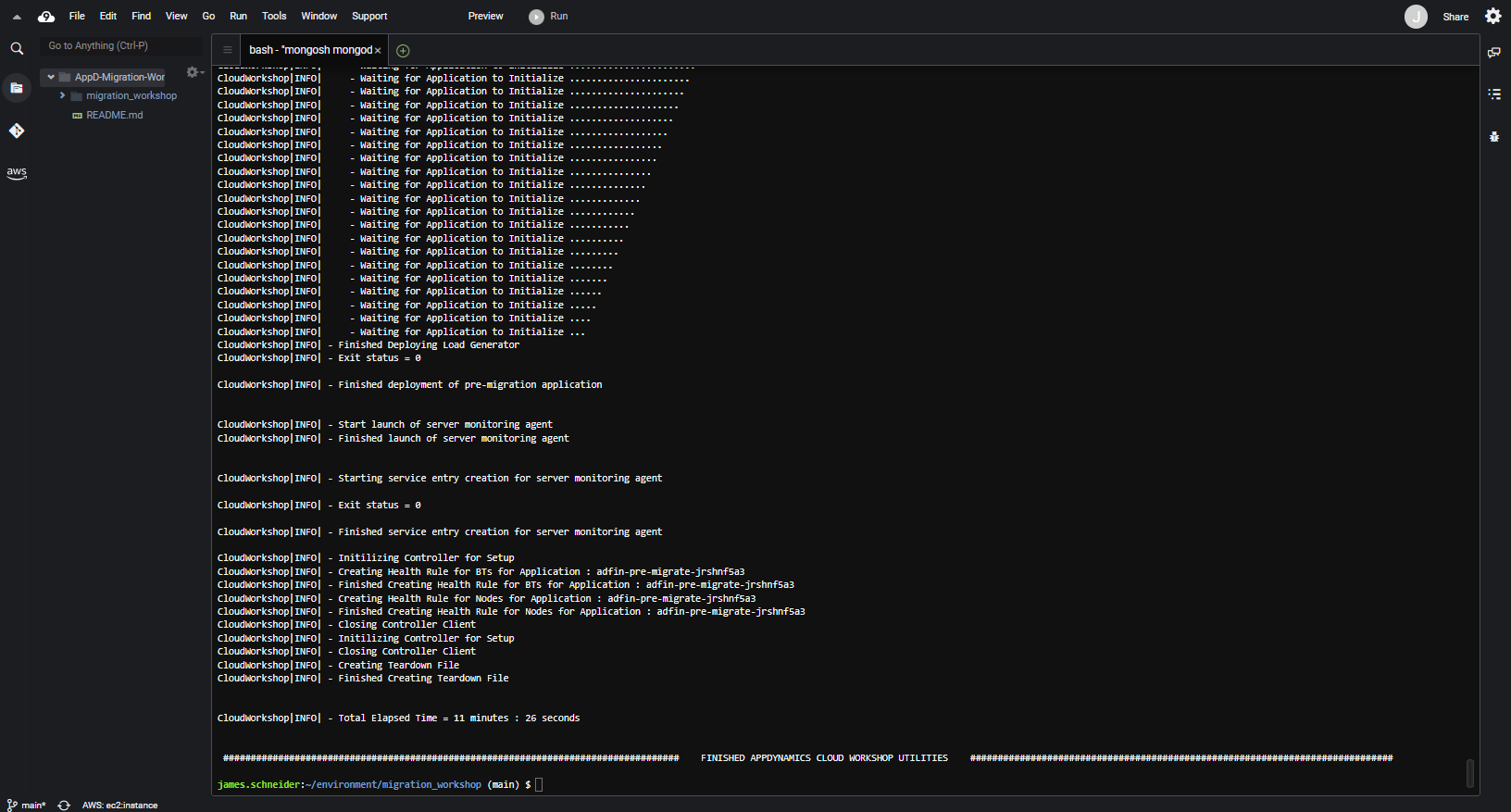
| The output from the setup script when it ends, should look like this: |
What the setup utility does
01) Resizes the Disk on your Cloud9 instance
02) Installs Java JDK 1.8
03) Installs kubectl
04) Installs eksctl
05) Installs Helm
06) Installs AWS EC2 Meta-Data Utilities
07) Installs docker-compose
08) Installs MariaDB
09) Installs MongoDB
10) Installs the AppDynamics Database agent
11) Installs the AppDynamics Server Monitoring agent
12) Creates an EC2 security group for external access to RDS Databases
13) Creates RDS databases with the security group attached
14) Creates three S3 buckets
15) Creates two Application Performance Monitoring apps in the AppDynamics Controller
16) Creates two Browser Real User Monitoring apps in the AppDynamics Controller
17) Creates two AppDynamics Database collectors in the AppDynamics Controller
18) Creates an RBAC User in the AppDynamics Controller
19) Creates an RBAC Role in the AppDynamics Controller
20) Adds the RBAC User in the AppDynamics Controller to the appropriate RBAC Roles
21) Deploys the Pre-Migration application to your local C9 instance
23) Creates the teardown file
Using a shell script -
Using the AWS Java SDK -
Using the AppDynamics REST API -
Additional setup in following sections
There will be some additional setup steps in the following sections listed below. There’s no need to do them now. Wait until you’ve reached those sections to perform the steps for each section.
| Migration Phase Section |
| Create the EKS Cluster | |
| Deploy the Application to EKS | |
| Deploy the AppDynamics Helm Chart to EKS |
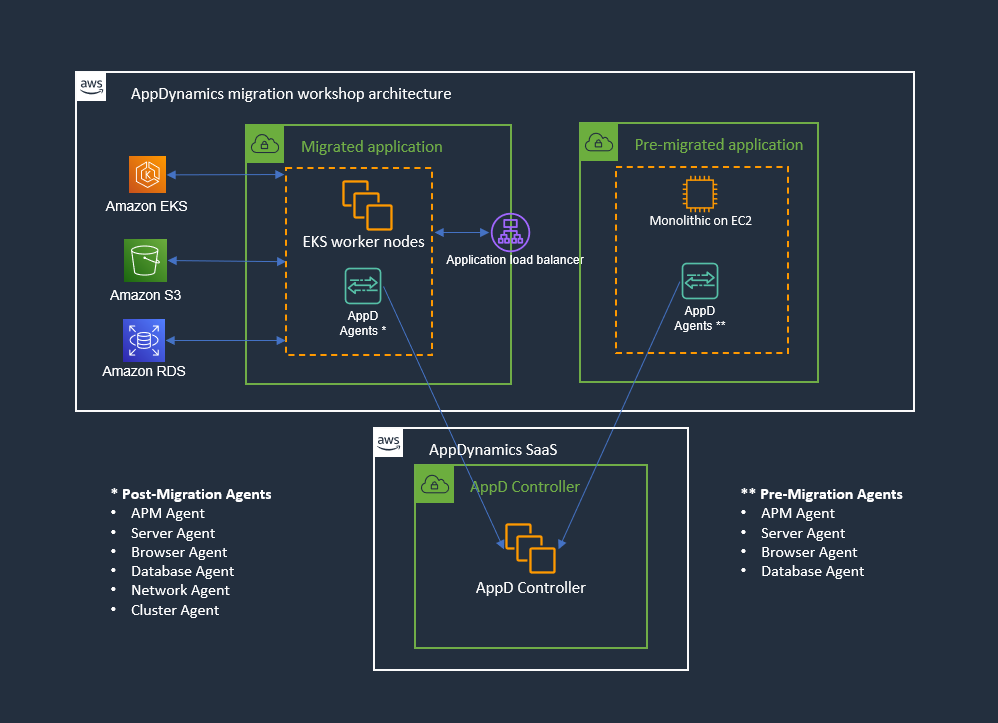
What the final architecture will look like
Next
While we are waiting for the setup utility to finish, let’s dive into the Cloud Migration section.